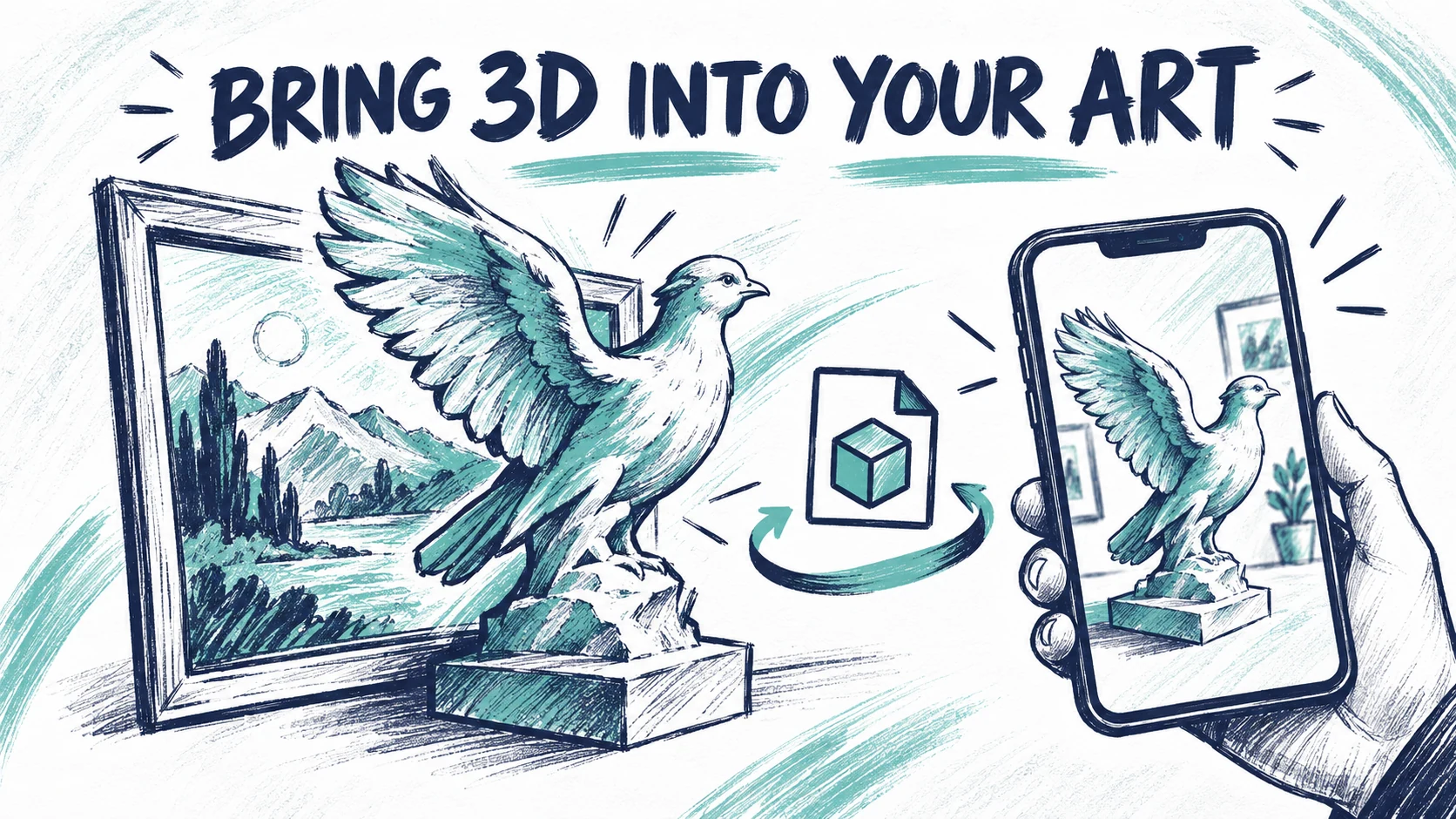

A small 3D element can extend an artwork into the viewer's space. In this exercise you will add a prepared model, align it with the painting and check it from more than one angle.
You need a saved image-tracked artwork and a model you have permission to use. Start with a compact GLB. It can package geometry, materials and textures in one file, which makes it a practical format for this workflow.
1. Choose a renderable file
The editor's 3D layer picker accepts GLB and glTF. A glTF asset may depend on accompanying textures or buffers, so a self-contained GLB is the simpler first choice.
Do not confuse a source file stored in the asset library with a model ready for the viewer. Formats such as OBJ, FBX and STL are working files; convert and check an appropriate GLB or glTF before expecting them to render as a 3D layer.
2. Inspect before placing
Open the model preview in the library when available. Check that textures are present, the subject has the expected orientation and no unwanted geometry surrounds it. A correct filename does not prove that its materials or animation exported correctly.
For a first test, use one model with simple materials. Keep an unmodified source copy so you can return to your 3D application if the export needs repair.
3. Add the model to the scene
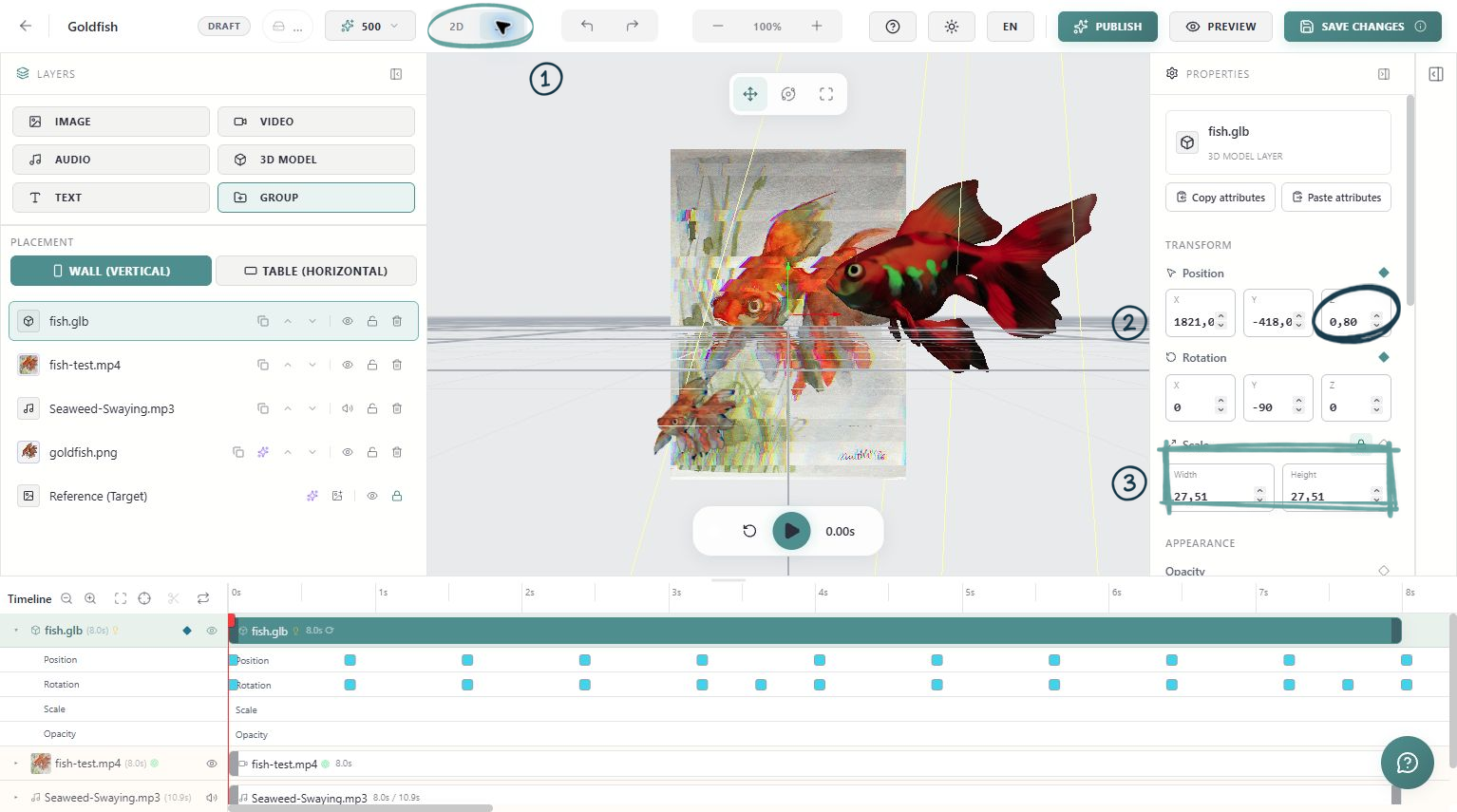
Choose 3D Model in the Layers panel and select the prepared file. Wait for it to load, then select the resulting layer. If it seems missing, inspect its position, scale and active time range before importing another copy.
Adjust Position, Scale and Rotation in Properties. Use the artwork's main features as visual anchors. A bird might sit near a painted branch; a sculptural element might emerge from a recognisable shape in the composition.
4. Check the volume it occupies
Use the editor's 3D view to inspect the model from the side as well as the front. Look for geometry passing through the picture plane or hiding another layer. A front view alone can conceal how far the model extends towards the visitor.
If the model contains animation, play the whole sequence and check its widest poses. A wing, arm or moving accessory may occupy more space than the first frame suggests. Do not assume an imported model is animated just because the original source application showed movement.
5. Keep performance in view
Use only the geometry and texture detail needed at the visitor's viewing distance. Reduce unnecessary meshes and oversized textures in your source application, then export a new version. A smaller file can help download time, while simpler geometry and materials can help playback.
Test beside the physical work
Save, publish or republish and open the public experience on a phone. Check placement, texture appearance, animation and loading time. View it from a slight angle. Add another 3D object only after this first one loads and behaves as intended.