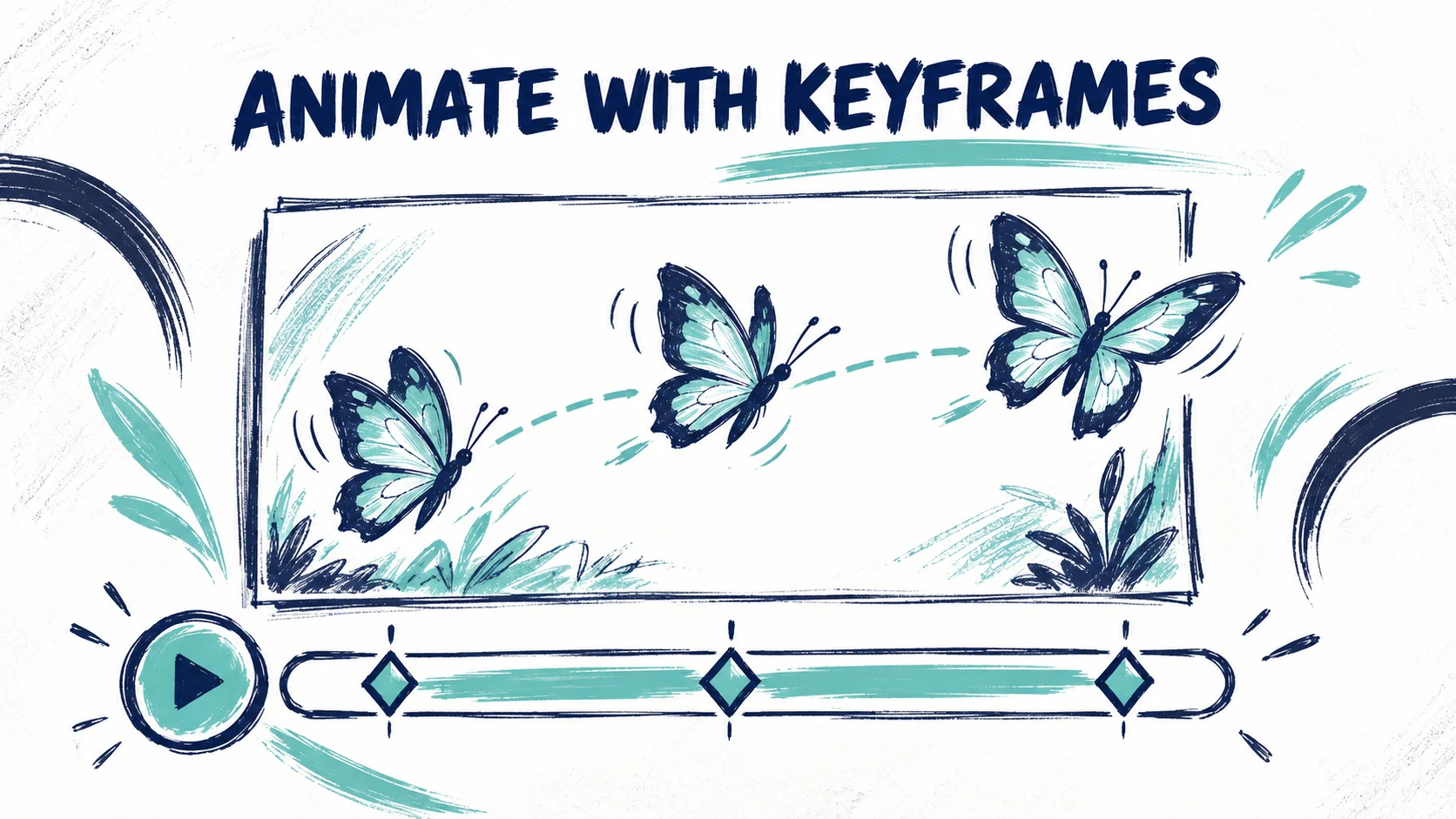

Keyframes describe where a layer should be at particular moments. The editor fills in the movement between them. You can animate an existing transparent image without exporting a new video.
This exercise moves a butterfly out from the artwork and back again. You need a reference and one transparent PNG. Use a new layer starting at the beginning of the timeline, with enough duration to include five seconds.
1. Set the starting pose
Select the butterfly layer and move the playhead to 0 seconds. Place it at its resting position over the painting. In Properties, use the diamond beside Position to add the starting keyframe.
Make sure you have created a keyframe, rather than only changing the layer's static position. The timeline indicator and the active diamond help you check that the pose has been recorded.
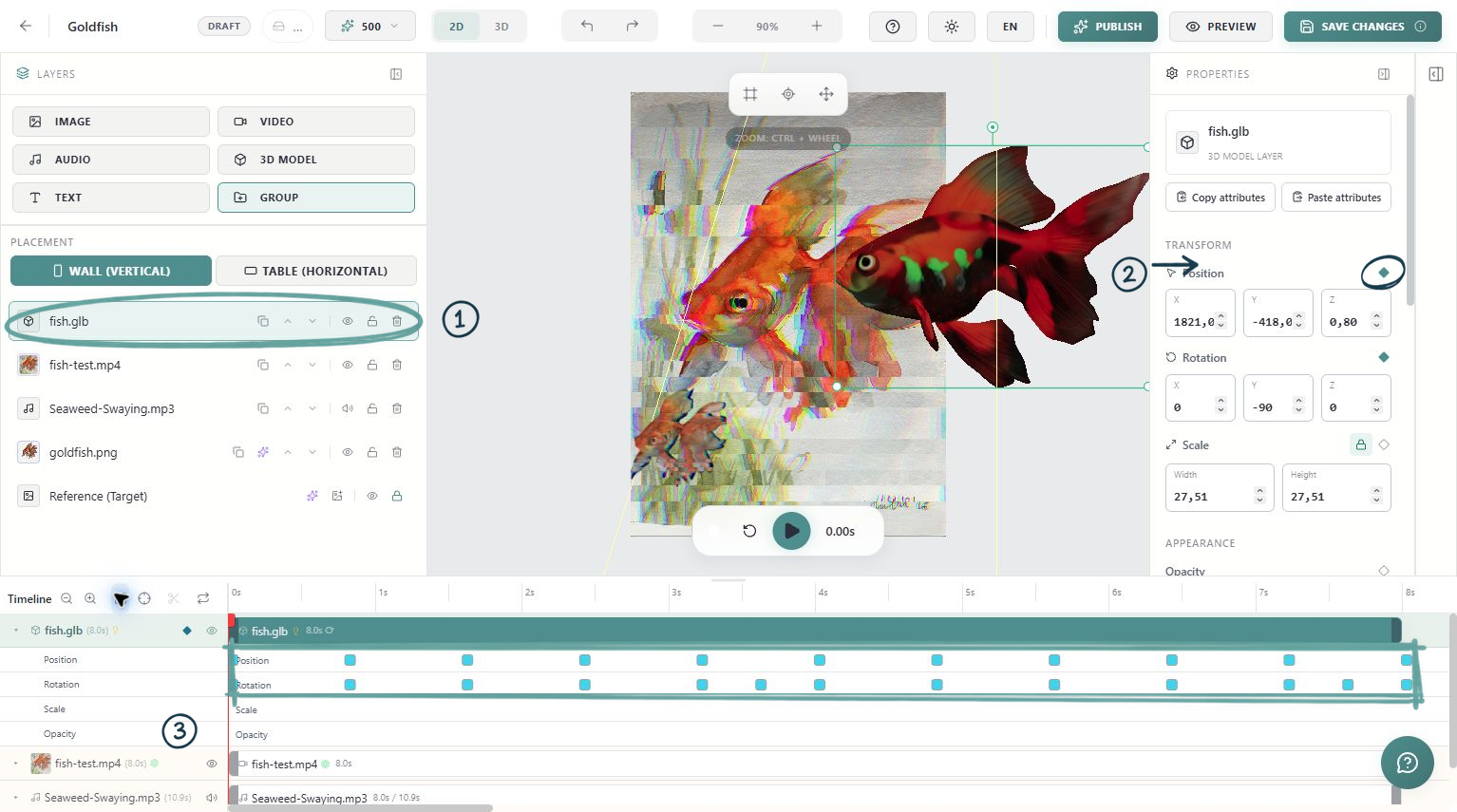
2. Add the middle pose
Move the playhead to 2.5 seconds. Change the butterfly's position so it moves a small distance upward or sideways. Add or update the Position keyframe at that moment.
For this first exercise, keep scale and rotation unchanged. Animating one property group makes it easier to understand what each recorded pose is doing.
3. Return to the starting position
Move the playhead to 5 seconds and set the butterfly back to its original position. Record the final Position keyframe. Your three poses are now start, excursion and return.
Play from the beginning. Watch the movement between all three positions, not only the poses themselves. If the path feels excessive, reduce the distance of the middle pose.
4. Understand the timeline context
The playhead is the moment you are editing. Keep the layer's start at 0 for this exercise. When a layer starts later, its animation is evaluated relative to that layer's active period, so moving the layer can shift when the viewer sees its poses.
Select the intended layer and check the time before changing a value. On a channel that already has animation, editing its value can update a keyframe at the current moment. Do not assume that changing an animated property moves the whole animation uniformly.
5. Refine one property at a time
Once Position works, try a small rotation using the same three moments. Add the starting rotation keyframe before changing later poses. Preview again after each addition.
You can also animate opacity or volume where the selected layer supports those controls. Keep the first exercise small; a readable movement is more useful than many simultaneous changes.
Check the ending
Matching the first and final position helps the motion return cleanly, but it does not automatically configure looping. Set the relevant playback options and layer duration, then watch what happens after five seconds.
Save and inspect the public experience on a phone after publication. If the layer jumps, look for a missing starting keyframe, an accidental extra pose or a mismatch between the last and first values. If it disappears, check its visible state and active time range.