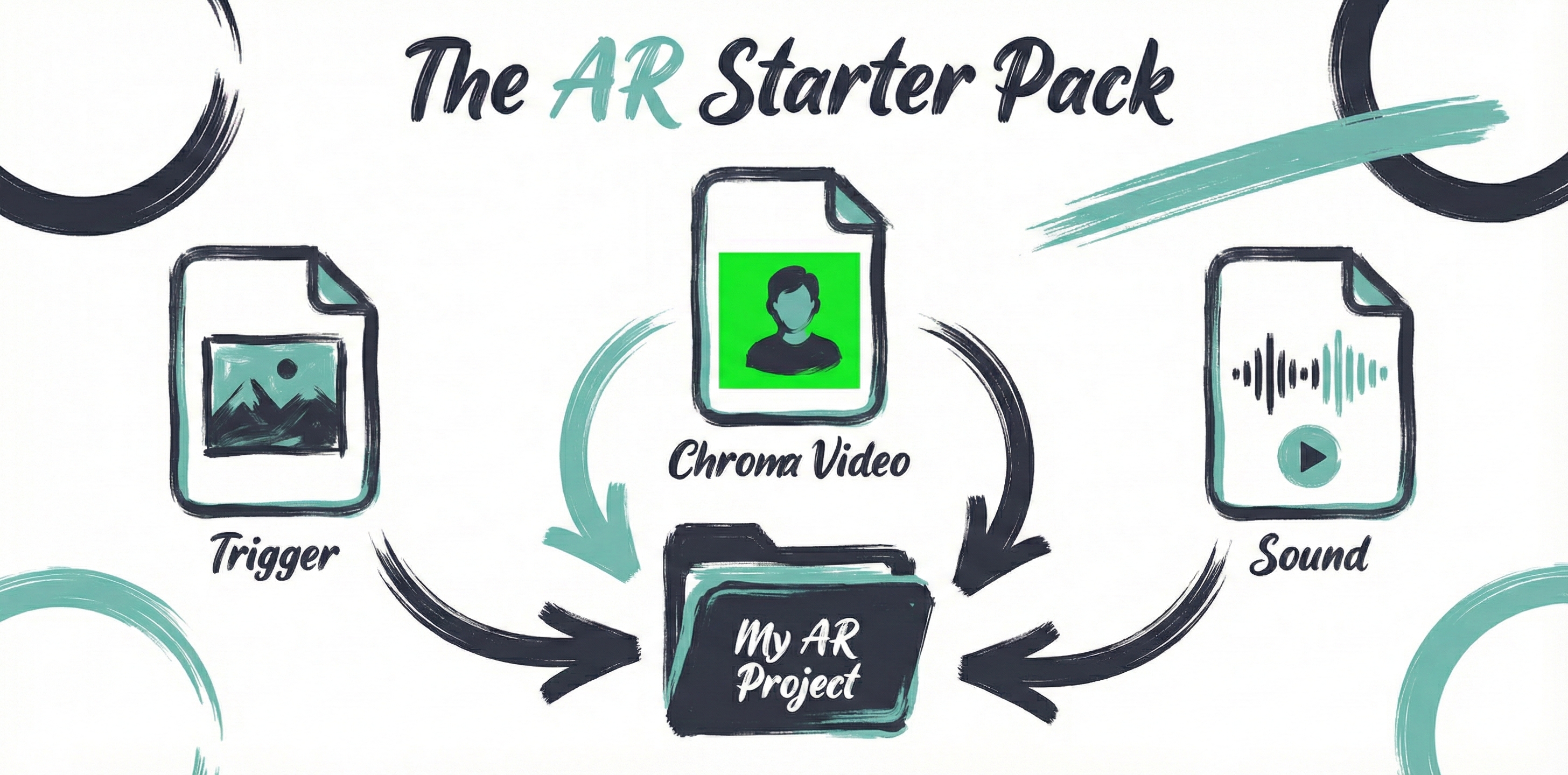
You do not need three mandatory files to start making AR art. For an image-tracked artwork, begin with a clear reference image and one visual layer. A separate soundtrack is optional. Your first experience can be a painting with a short video, a transparent illustration or a small 3D object.
This guide covers the current Painta editor. Updated 20 September 2026. Start with your own artwork and media you have permission to use.
1. Prepare the reference image
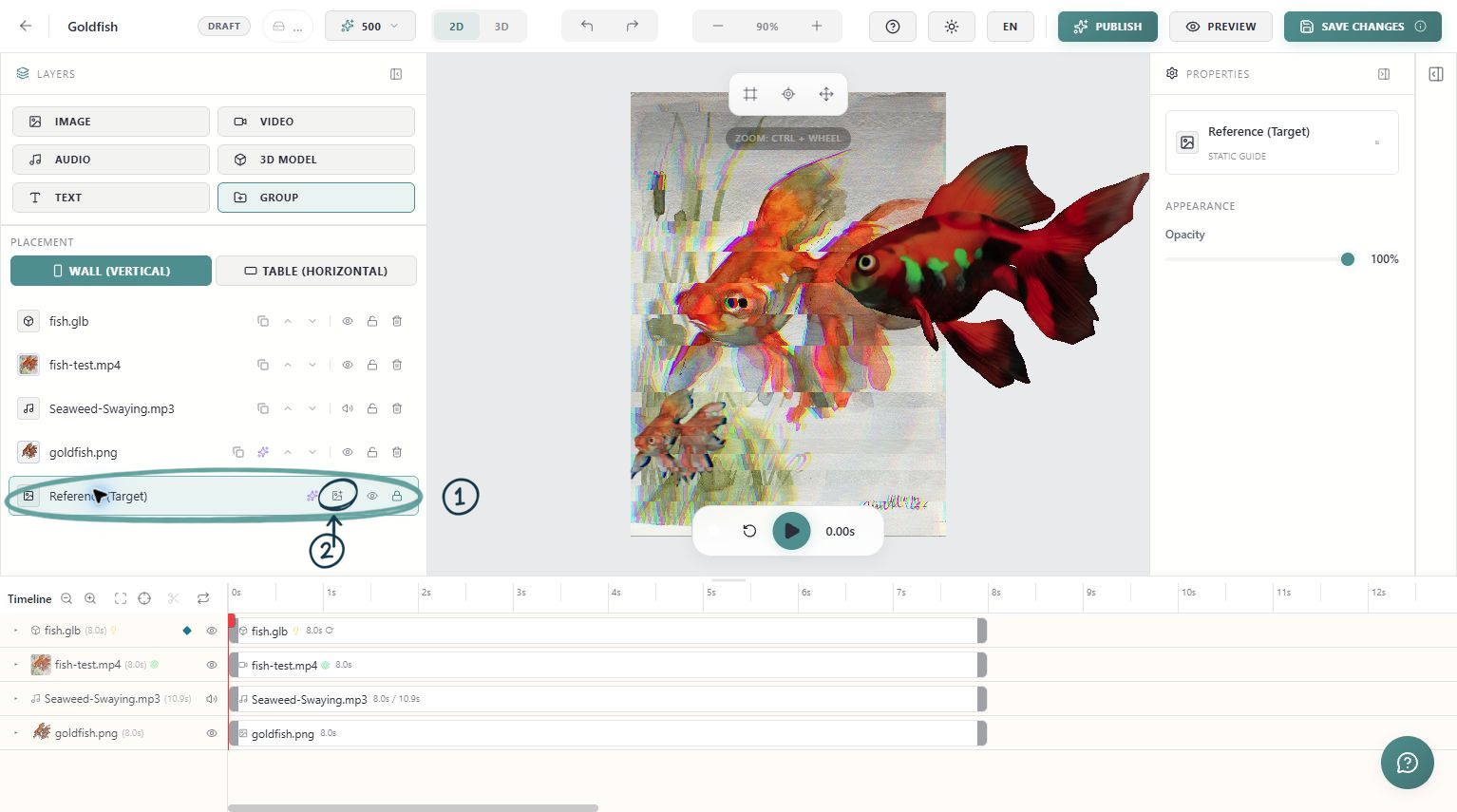
The reference is the picture the camera recognises on the physical artwork. Photograph the artwork straight on, in even light, and crop to the actual surface you want visitors to scan. Remove the surrounding wall, easel and unrelated frame from the photograph if they will not be part of that target.
Use a sharp JPG or PNG as a straightforward starting choice. Preserve the artwork's proportions: stretching the photograph to fit a different shape makes alignment harder. Avoid glare, deep shadows, blur and a photo taken at an angle. Distinct details distributed across the picture help more than a large, almost empty area.
Keep this reference separate from the animation. An opaque video placed over the picture is still part of an image-tracked experience; it does not replace the reference used to recognise the artwork.
2. Choose one visual layer
For a first attempt, choose a short MP4. An opaque video can cover the painting; a video with a plain contrasting background can become a floating element using Chroma Key. A transparent PNG is another simple option and does not require a video export.
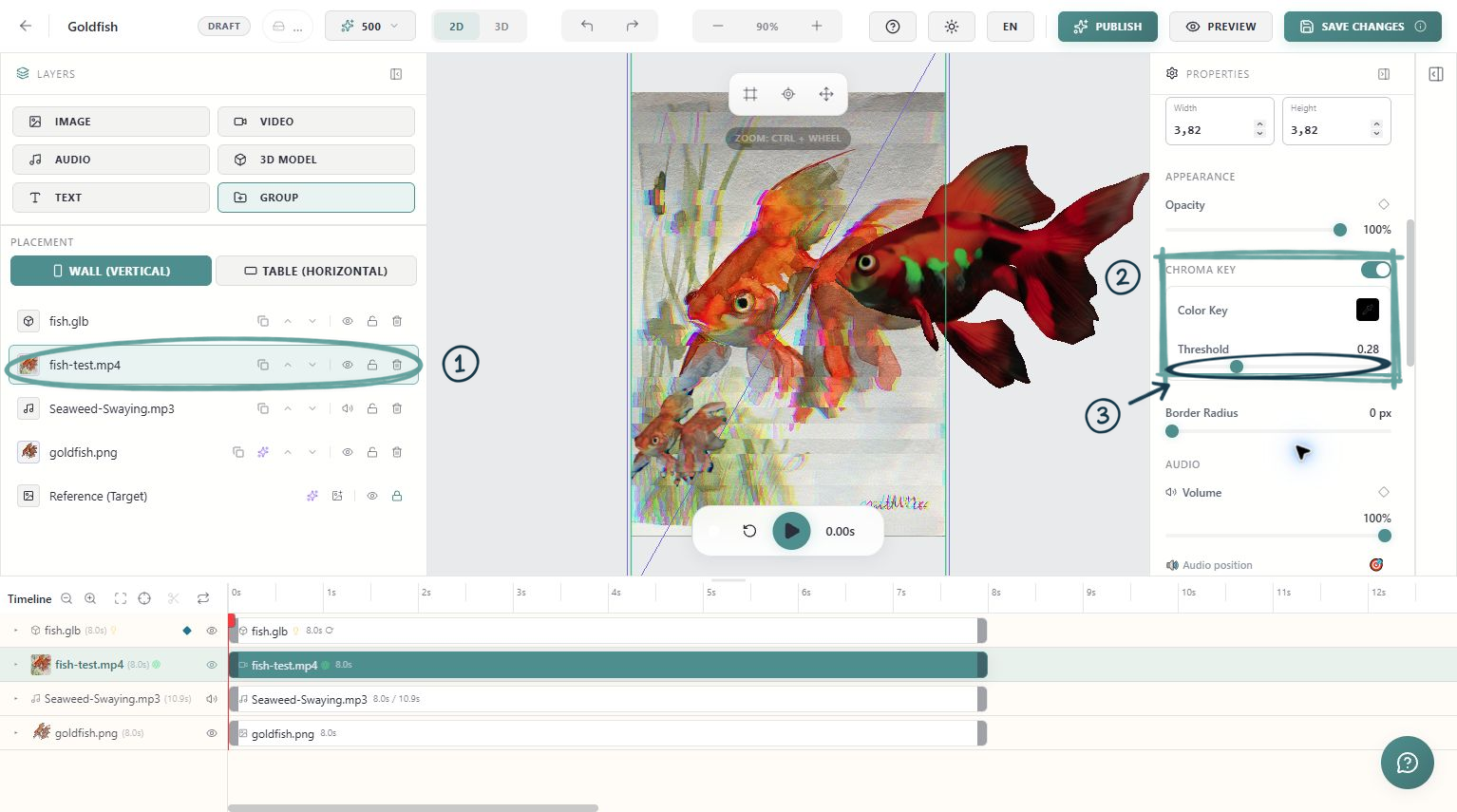
For chroma, choose a background colour absent from the subject you want to keep. If the moving subject contains green, use a different backdrop. The important contrast is inside the video itself: green painted on the physical canvas is not automatically removed by another layer's chroma setting.
In the editor, add a Video layer, upload the clip and select it. In Properties, enable Chroma Key, pick the actual backdrop colour and raise the threshold gradually. Stop when the background disappears without eating into the subject. Scrub through the entire clip to check edges in motion.
MP4 is a practical delivery choice. Painta also accepts other source formats, but uploading a file and having its processed version ready are separate stages. Wait for media processing before judging playback.
3. Add sound only when it helps
Keep the video's embedded soundtrack, or add a separate Audio layer for narration or music. MP3 and WAV are straightforward choices; the current audio picker also accepts AAC, OGG and M4A. A separate layer gives you independent timing and volume controls.
Audible playback may need a visitor's tap or other interaction. Test the viewer's start and sound controls on a real phone. If you use both embedded audio and a separate soundtrack, check that they are not accidentally playing the same sound twice.
4. Keep a simple project folder
- Reference.jpg: the cropped, undistorted target photograph.
- Animation.mp4 or Overlay.png: the first visual layer.
- Narration.mp3: optional, when sound is separate from the video.
- Source files: keep your editable originals and a note of the media permissions.
Upload limits exist and depend on the upload route and available account storage. Do not treat a maximum upload allowance as a performance target. Start with a short, compressed clip and test loading on a phone before adding heavier assets.
Before opening the editor
Check that the reference matches the physical piece, the visual file opens correctly and the optional audio is understandable. Give the files clear names. Your aim is one small experience that you can recognise, play and test all the way through.
Original video walkthrough
The original video is retained below as a supplementary demonstration. Use the written instructions above for the current workflow and controls.