
Sound can add a voice, an atmosphere or a rhythm to a painting. The useful question is what the visitor should hear and when. This exercise adds a short narration with an optional quiet background track.
You need a saved artwork and audio you have permission to use. MP3 or WAV is a simple starting choice. The current picker also accepts AAC, OGG and M4A; allow time for processing after upload.
1. Prepare a short, clear recording
Record in a quiet space and listen with ordinary phone speakers as well as headphones. Remove long accidental silences and distracting background noise in your audio editor. Keep a little breathing room at the beginning and end.
Write down the spoken words if visitors need a readable alternative. A visually clear caption or text card can convey the key message when the visitor cannot or does not want to listen.
2. Add the Audio layer
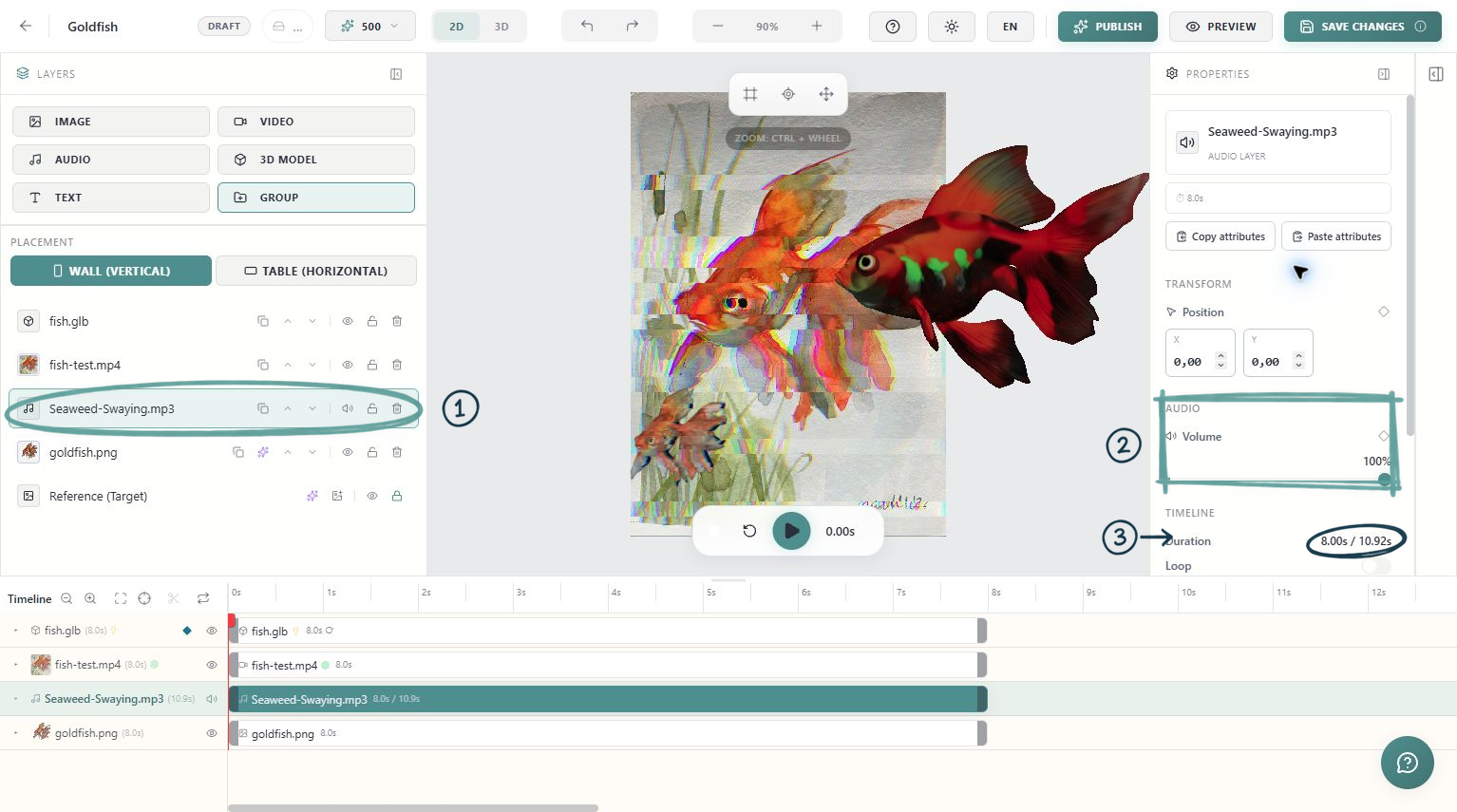
Choose Audio in the Layers panel and upload or select the file. Wait until it is ready, then give the layer a useful name such as “Artist narration.” An audio layer contributes sound; it does not need to cover the painting with a visible image.
Play from the beginning and check that you hear the intended recording. If you imported a video as well, listen for an embedded soundtrack that might be playing at the same time.
3. Set the timing
Use the timeline to place the narration where it should begin. Check that the layer remains active long enough for the final word to finish. Do not cut a sentence short just to match the end of a visual effect.
For a voice introduction, a single play-through is usually easier to understand than constant repetition. For an ambient bed, Loop may be appropriate. Listen to the join before choosing it.
4. Balance the volume
Select the audio layer and adjust Volume in Properties. Start with narration, then add any background track at a lower level. Lower or mute a video's soundtrack if it competes with the voice.
The current editor supports volume keyframes. For a gentle introduction, set a lower volume at the beginning, add a later volume keyframe at the listening level and preview the transition. Keep changes gradual enough that words remain understandable.
The audio layer's speaker control lets you enable or mute it while composing. Before saving, confirm that the intended soundtrack is enabled and its volume is above zero.
5. Test the visitor's sound controls
Publish or republish, open the experience on a phone and use the viewer's start or sound control. Browsers may require a user interaction before audible playback. Also check the phone's media volume and whether audio is routed to headphones or another device.
If the experience is silent
Check the layer's speaker state, volume and active time range. Confirm that processing completed and that the source file actually contains sound. Then test again from the start of the public experience. A successful mix keeps the voice intelligible, avoids doubled sound and remains understandable through the accompanying visual content.