

A plain video background does not need to become a visible rectangle over your painting. Chroma Key removes a chosen colour from a video layer so the remaining subject can appear to float in front of the artwork.
You need a reference image and a short clip with a flat, contrasting backdrop. This exercise uses the current Chroma Key controls in the selected layer's Properties panel.
1. Prepare a backdrop the subject does not share
Choose a solid background colour absent from the moving subject. Green is common, but a green leaf or green costume needs a different backdrop. The colour of the physical painting underneath does not determine which pixels are removed from the video layer.
Avoid textured backdrops, shadows, compression blocks and motion blur around fine edges. Leave room around the moving subject so it does not get cut off by the video's frame. Export a short MP4 for your first test.
2. Add and align the video
Choose Video in the Layers panel and upload or select the clip. Wait for processing, select the resulting layer and adjust its position and scale. First place the subject where it should appear over the reference.
Use a modest size while testing. Very large video planes make small edge defects more obvious and can hide other elements of the composition.
3. Enable Chroma Key
With the video selected, open the Chroma Key section in Properties and switch it on. Set the colour control to the actual background colour in your clip. The default green is only a starting value; it may not match your exported backdrop.
Increase the threshold slowly until the unwanted background disappears. If part of the subject vanishes as well, reduce the threshold and check whether the subject shares colours with the backdrop. A higher threshold is not automatically a better result.
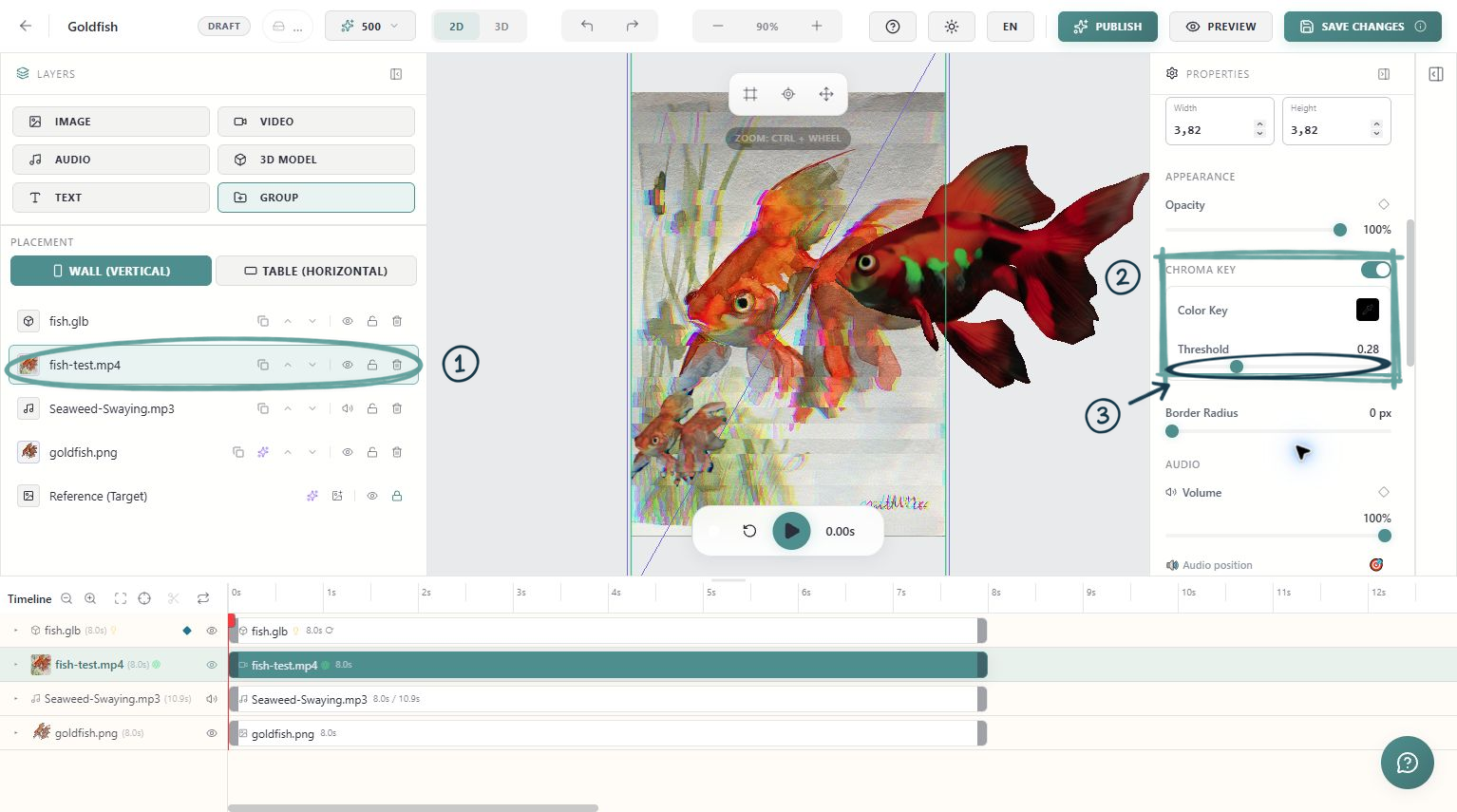
4. Check moving edges
Scrub to several points in the clip and then play it from beginning to end. Inspect hair, transparent fabric, thin stems and fast-moving edges. Look for a coloured fringe, holes in the subject or a rectangle that returns in a darker frame.
If one threshold cannot remove the background without damaging the subject, improve the source clip. Re-exporting against a cleaner, more distinct backdrop can solve a problem that the editor's threshold cannot.
5. Set duration and looping
Trim or position the layer on the timeline so it appears when intended. Enable Loop if repetition is part of the scene, and watch the join between the last and first frames. Chroma removes colour; it does not make a discontinuous animation loop seamless.
If the video contains sound, decide whether to keep it or lower its volume. A separate audio layer is optional.
Verify the floating effect
Save, publish or republish, and test on a phone against the physical work. Move slightly sideways and check that the subject's placement still makes visual sense. Your successful result has no distracting backdrop, retains the subject's important edges and adds movement without obscuring the artwork unintentionally.