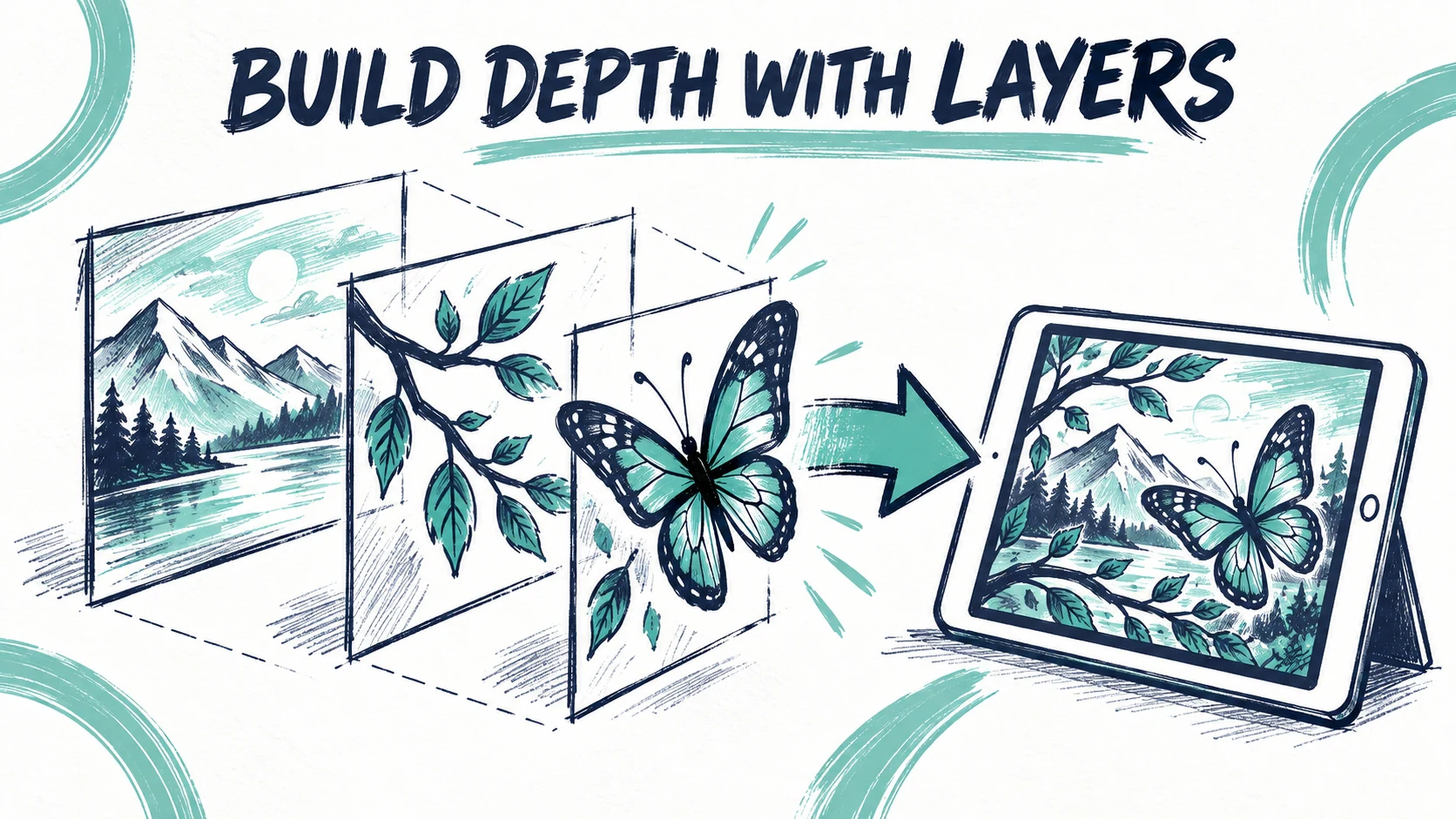

Depth works best when each layer has a visual purpose. In this exercise you will place two transparent elements at different depths around an existing artwork, while keeping the original composition readable.
You need a reference image and two cut-out PNGs, such as a branch and a butterfly. Use prepared transparent images for this exercise. AI-assisted extraction is a separate creative option; it is not required to understand the layer controls.
1. Decide what should move forward
Look at the artwork before opening the editor. Choose a foreground subject and a supporting element behind it. Decide what the visitor should notice first and which parts of the physical painting should remain visible.
Do not add a second copy of the entire reference automatically. A duplicate should serve a specific effect, such as a timed transition. Lowering the opacity of an identical copy over the same picture does not darken that picture.
2. Add and name the cut-outs
Use Image in the Layers panel to add each PNG. Name the layers for their role, for example “Foreground butterfly” and “Middle branch.” Select one at a time and align it with the reference from the front.
Check transparency before continuing. A checkerboard baked into an exported image is a pattern, not transparency. If you see that pattern in the editor, return to the source file and export a PNG with a real transparent background.
3. Introduce a small amount of depth
Use the position controls and the editor's 3D view to move the foreground element slightly away from the picture plane. Keep the middle element closer to the artwork. Review the result from the front and from an angled view.
Start with subtle separation. A large offset can make an element feel detached from the painting or place it in front of another object unexpectedly. Check the actual spatial positions instead of relying only on the order of names in the layer list.
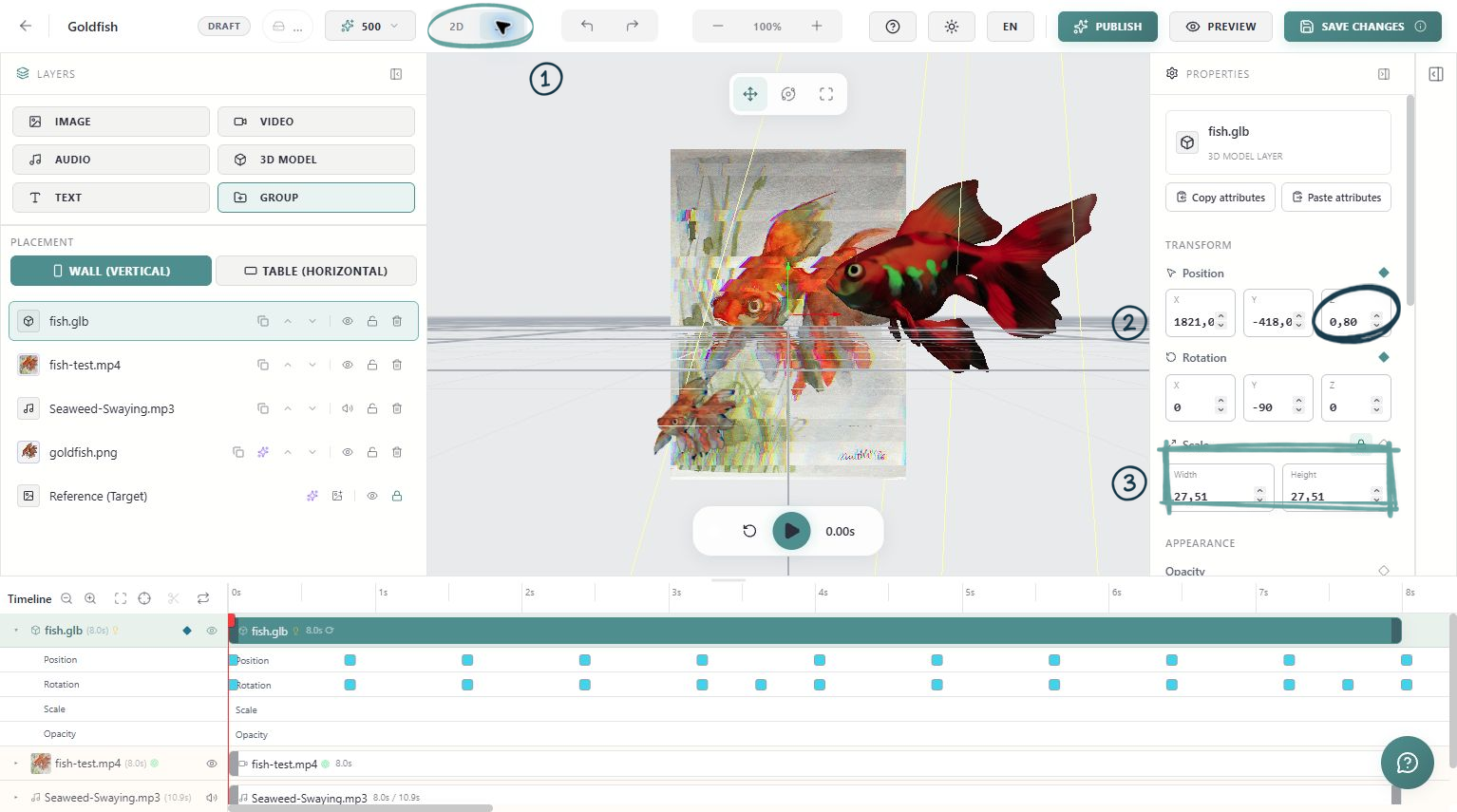
4. Inspect overlaps and empty areas
Hide and show the added layers one at a time to see what each contributes. Look for a cut-out that exposes an unwanted duplicate subject still visible in the physical artwork beneath it.
An extracted subject does not erase paint on the original canvas. If the effect requires a clean background behind a moving subject, you need a deliberate background treatment or a composition that makes the overlap work. Check that treatment across its whole duration.
5. Keep the scene manageable
Rename layers before adding more. Lock a layer once its placement is correct to reduce accidental movement. Use groups when several elements should be organised together, and check their positions after any grouping changes.
Preview the full timeline. A foreground layer that appears too early can reveal the trick before the intended moment.
Verify on the physical artwork
Save and republish. View the work head-on, then from a small angle and a normal visitor distance. Check the apparent depth, cut-out edges and overlap with the real painting. Keep the smallest amount of separation that communicates your idea clearly.