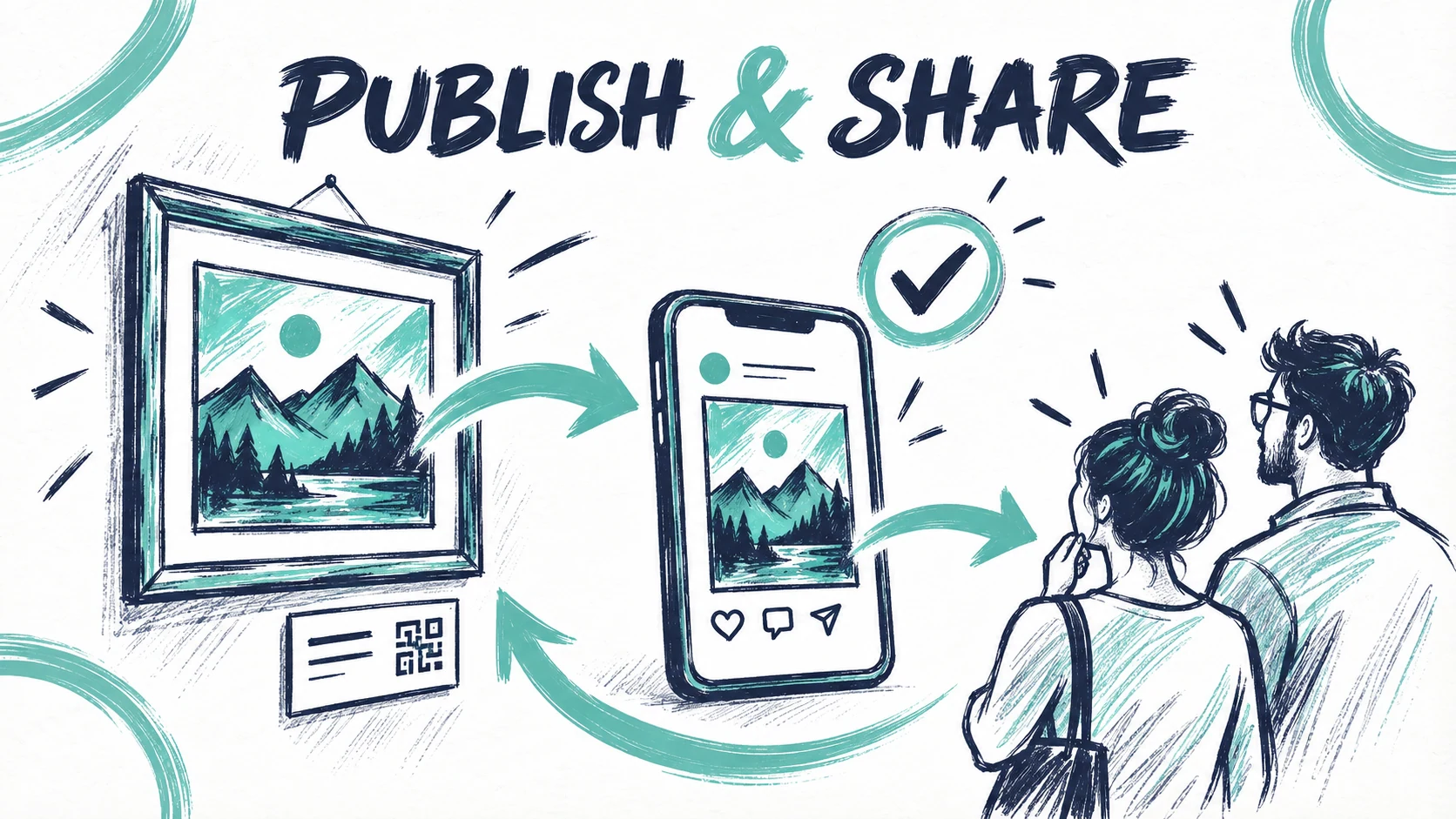
Publishing connects your saved scene to the experience a visitor opens. This tutorial takes you from an editor preview to a tested public link and a QR label you can place beside the artwork.
You need a saved Painta artwork with its reference and media ready. Have the physical work and a phone nearby. Check the publishing allowance shown for your account; this guide does not assume a particular paid plan.
1. Review the complete scene
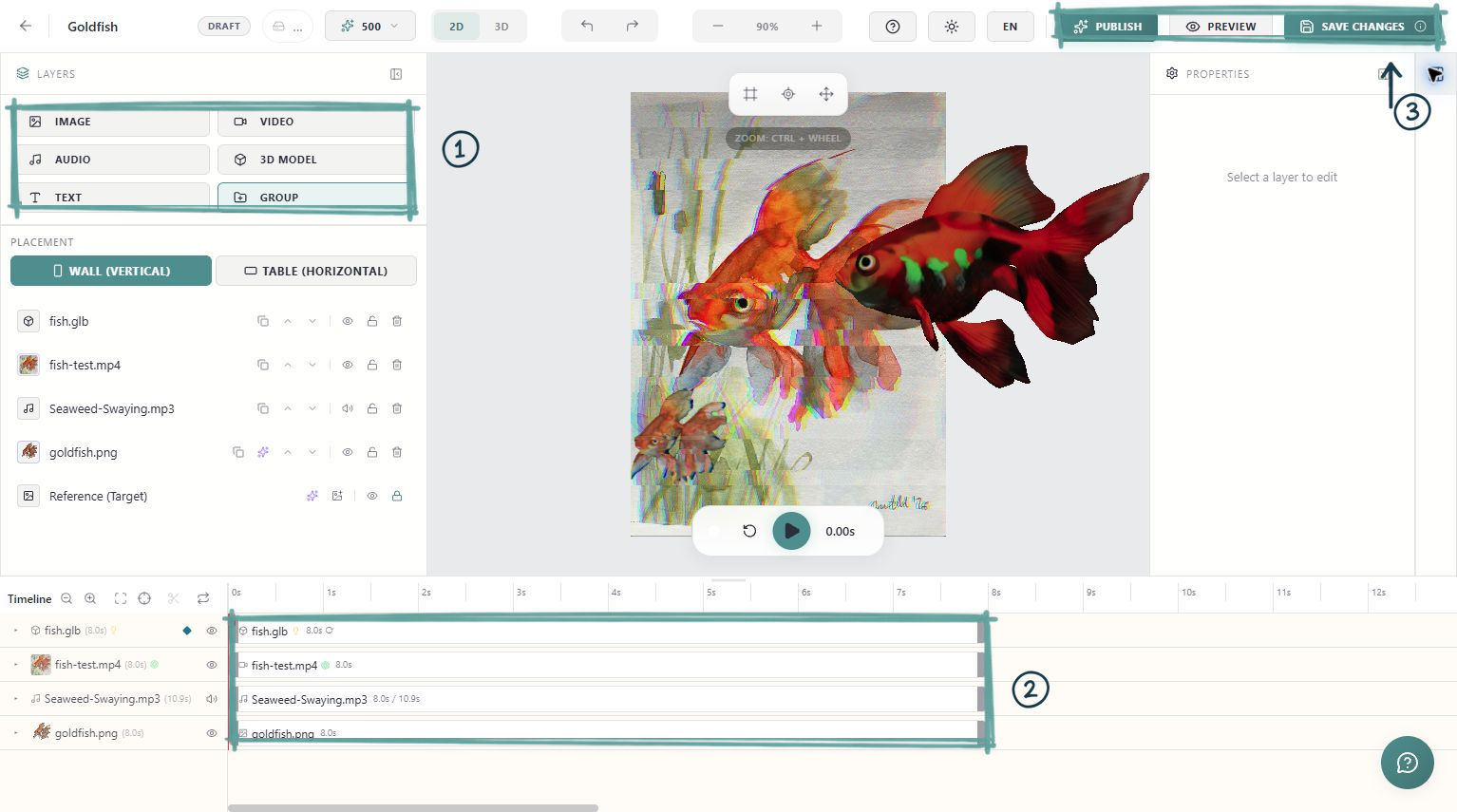
Play from the beginning. Check when each layer appears, whether a loop joins cleanly and whether narration remains audible over music. Inspect the start and end, not just the most impressive moment in the middle.
Confirm that the title and reference belong to the work you intend to share. Make sure uploaded media has finished processing. Keep a saved version before making substantial changes to an already published piece.
2. Save, then publish
Use Save Changes and wait for confirmation. Open Publish from the editor. Painta performs a preflight check and can show warnings or blocking issues before the publication completes.
Read the actual message. Fix a missing asset or other blocking issue in the editor, save again and repeat the check. A warning is a reason to review the experience on a phone; it is not evidence that every device will play it correctly.
Wait for the success state. If publishing fails, retain the error message and resolve that cause before printing or distributing the link.
3. Open the public link as a visitor
Copy the link offered after publication and open it on your phone. Test from a browser session that is not signed into your artist account, so you are checking the visitor experience.
Follow the start instructions, allow camera access when you want to view AR and point the camera at the artwork. If sound needs a tap, use the viewer's start or sound control. Check that the content plays to the end and that interactive elements work.
4. Download and test the QR code
Use Download QR in the publication result. The QR code opens the experience; the reference image identifies the artwork for image tracking. They have different jobs.
Place the QR beside the work with a short instruction such as “Scan to view this artwork in AR.” Keep it high contrast and leave clear space around it. Do not stretch it, place it over a busy picture or let a frame cover part of the pattern.
Print one test label at the size you plan to use. Scan that print under the actual exhibition lighting and from a realistic visitor distance. A QR that works enlarged on your monitor is not a complete print test.
5. Update an existing experience
When you revise a published artwork, save the changes and use the republishing action. Reopen the existing public link and check that it shows the intended version before replacing labels or announcing the update.
Ready to share
Your check is complete when a visitor can scan the printed QR, start the viewer, recognise the physical artwork and experience the full scene. Test at least one second phone when available. Keep the public link with your project notes so it is easy to verify later.