An alpha channel stores transparency information alongside an image's colour, allowing parts of an image or video to be transparent or partly transparent.
Why the background matters
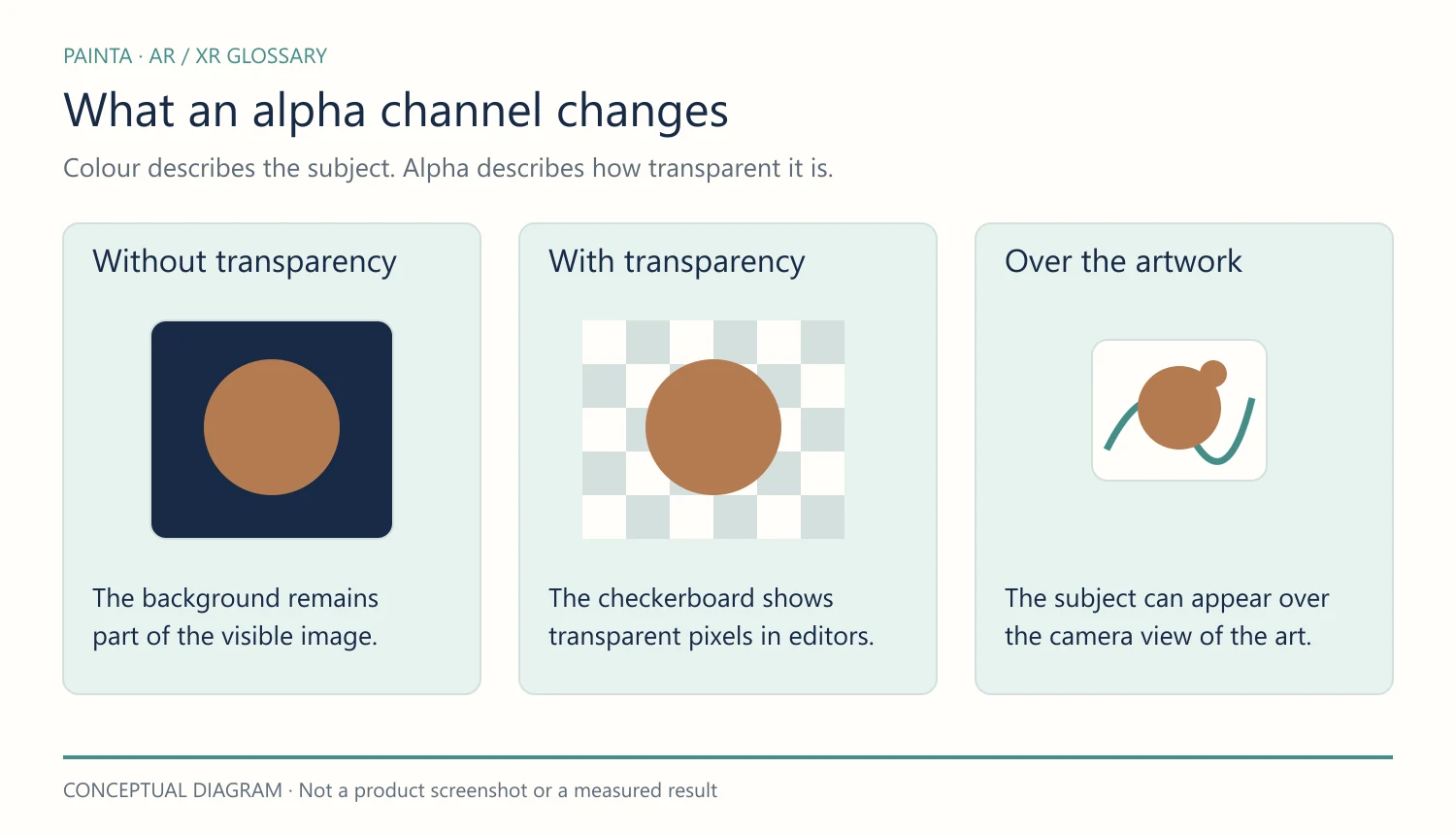
Without transparency, an animation can look like a rectangular video placed over a painting. With a suitable alpha channel, only the intended subject is visible, so the camera view of the physical work can remain visible around it. Partly transparent pixels can soften edges, smoke or glass-like effects.
See the concept in motion
Reading the checkerboard
Many editors display transparent areas as a grey checkerboard. The pattern is a preview aid, not part of the artwork. If the checkerboard has been baked into an exported image, it will appear in the final experience.
A Painta example
A butterfly animated over a painted flower should not need an opaque rectangle behind it. A correctly prepared transparent layer can make the relationship between the physical and digital elements clearer. Check the supported file format and the actual viewer before assuming an export retains transparency.
Alpha is different from removing a colour
Chroma keying removes a selected colour, often green, during processing. An alpha channel explicitly stores transparency. Both can create a cutout effect, but they are different workflows. Video containers, codecs and browsers do not all handle alpha in the same way.